
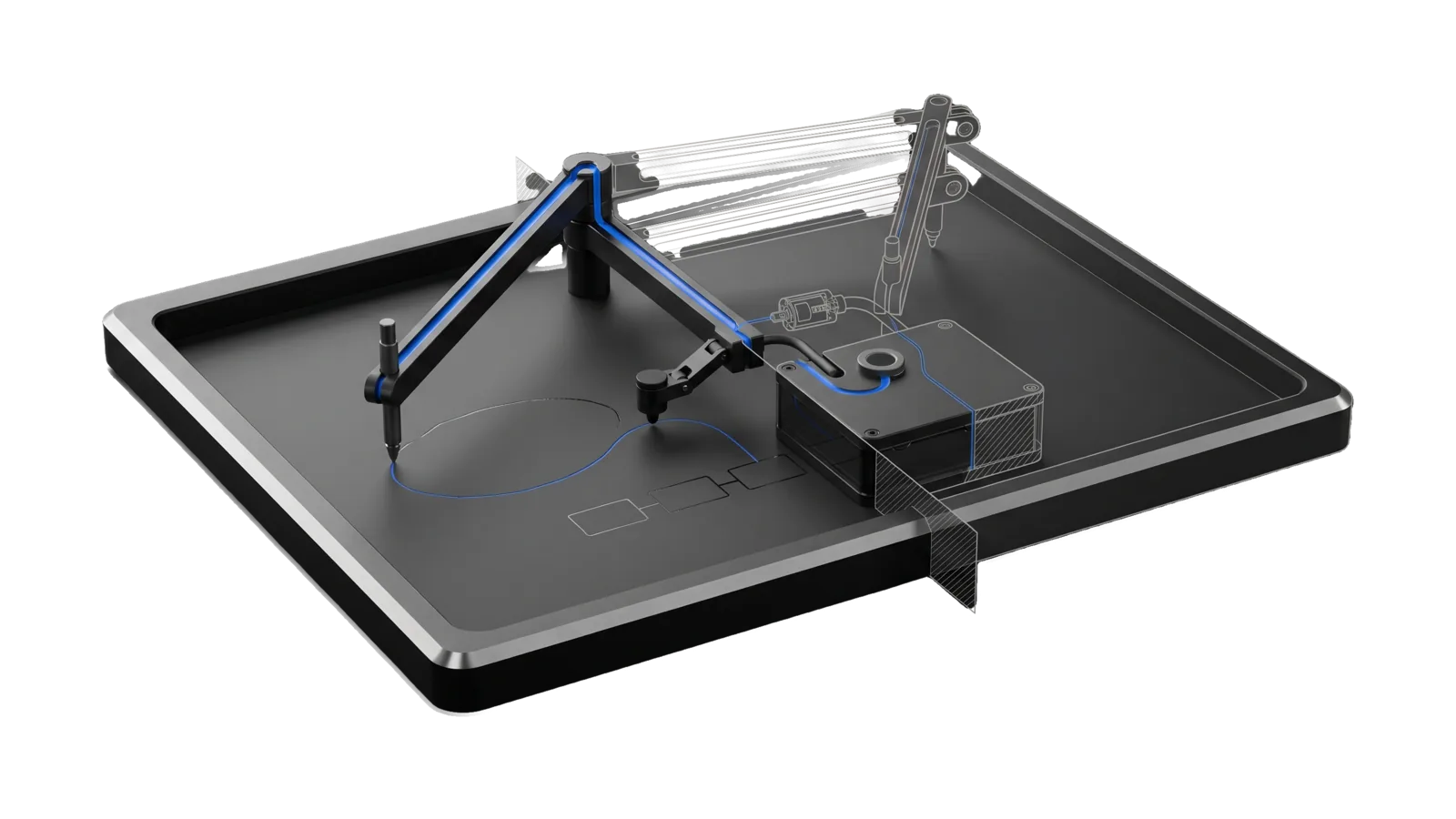
A wide black tray with a pivoting two-bar linkage over it, one stylus resting on a hand-drawn loop and a readback probe leading to a sealed cassette; a faint three-box sketch lies on the tray, a glass section pane cuts the cassette, and a blue line runs along the linkage with its far arm drawn as ghosted outline.
Creative

Excalidraw

Sketches ideas as hand-drawn Excalidraw diagrams on a live local canvas via the pinned mcp-excalidraw-server CLI, with mermaid conversion, file I/O, and share links

02
Workflows
04
Tools
00
References
14
Triggers

Key Points

Not for polished images (Art), web UI (Webdesign), video (HyperFrames)

Inside the Skill

The thinking, frameworks, and architecture that distinguish this skill from a generic version of the same task.

Ideal State

  • Every diagram left behind is readable by the person it is for: no truncated or overlapping text, label style set at creation, and Tools/ContrastCheck.ts exiting 0 against the real ground, which holds in light and dark themes alike.
  • What leaves the machine is the form that renders correctly: a link from Tools/Share.ts for a scene without images, the exported .excalidraw file (or a PNG flattened from it) for a scene carrying screenshots, and never a local canvas screenshot as final art.
  • The canvas is driven only through Tools/Canvas.ts, so the pinned package version and port hold, and the skill registers no MCP server.
  • A human's canvas is read back faithfully and nothing they drew is lost: risky changes are snapshotted first, and the detached server is stopped when the drawing work is done unless the user keeps using it.

Intent Routing

Intent Trigger File
SketchDiagram "sketch a diagram", "draw this", "put this on a canvas" Intents/SketchDiagram.md
RefineDiagram "refine the diagram", "read my canvas", "organize my whiteboard", edit an existing .excalidraw Intents/RefineDiagram.md
File Read when
References/Cheatsheet.md writing element JSON or using a command the intents do not show: full command list, element format, palette and sizing, layout anti-patterns, quality checklist, error recovery, raw REST API

Data & Config

User customizations live at <configRoot>/LIFEOS/USER/CUSTOMIZATIONS/SKILLS/Excalidraw/ (configRoot is $CLAUDE_CONFIG_DIR when set, else ~/.claude). When the directory exists, its PREFERENCES.md (default export directory, preferred palette, canvas port override) applies; when it is absent, the defaults stand.

Quick Reference

  • Tool: bun ~/.claude/skills/Excalidraw/Tools/Canvas.ts <command> [...] — pins mcp-excalidraw-server@2.0.0 and port 3579; all commands pass through.
  • Canvas URL: http://127.0.0.1:3579 — the user opens this to watch live and hand-edit. Any canvas-touching command auto-starts the server.
  • Contrast gate: bun ~/.claude/skills/Excalidraw/Tools/ContrastCheck.ts [--bg <hex>] — deterministic WCAG check of every text element against its effective background; MUST exit 0 before any diagram is declared done.
  • Embed an image: bun ~/.claude/skills/Excalidraw/Tools/AddImage.ts <image> --x N --y N [--w N --h N] or --replace <shapeId> to fit a screenshot inside an existing box. Registers the bytes as a data-URL file and adds an image element; the file travels inside the exported .excalidraw. Use for real screenshots as diagram nodes (e.g. a dashboard capture as the "Agents Dashboard" node).
  • Black-canvas share: bun ~/.claude/skills/Excalidraw/Tools/Share.ts <scene.excalidraw> [--bg <hex>] — uploads to excalidraw.com with the canvas background baked in (default #111114). Use it, never the CLI share (which hardcodes a white canvas). The shared-link editor does not reliably honor the file's viewBackgroundColor alone, so a non-white scene also carries a backdrop rectangle (Gotchas).
  • Exit codes: 0 ok, 1 error, 2 usage, 3 canvas unreachable, 4 browser tab required.
  • Files: exported .excalidraw files open at excalidraw.com (File → Open) or in the Excalidraw VS Code extension. A .excalidraw.md export targets the Obsidian plugin's native format.

Gotchas

  • Label styling is set at CREATION, deterministically — the export/share expansion gives each bound label its shape's strokeColor and the shape's fontSize prop (default 16). So: put fontSize: 20 on labeled shapes, choose stroke colors that read on the fill, and give solid-color focal boxes a PALE fill with a saturated stroke (never saturated fill + dark stroke, which makes the label invisible). No post-add patching, no free-text label workaround — free labels detach from shapes and were retracted after live use (2026-08-26). The viewer's dark mode inverts the whole canvas, so colored text on colored fill can vanish even when a light-mode screenshot looks fine; run Tools/ContrastCheck.ts before declaring done. Inversion preserves contrast ratios, so a passing check holds in both themes.
  • Embedded images do NOT survive an anonymous excalidraw.com share LINK — they render as a broken-image placeholder. Excalidraw stores image bytes in a separate encrypted file backend that the #json= link path doesn't populate; only the scene travels. Images DO survive the exported .excalidraw FILE (open it via File→Open / the VS Code extension / desktop app and the picture renders). So a diagram carrying screenshots ships as the FILE, or as a flattened PNG rendered from the file — never as a share link.
  • Loading a share link on excalidraw.com shows a "Load from link" dialog — the user must click "Replace my content" (their previous excalidraw.com scene is overwritten; mention it when handing over a link).
  • The bundled live-canvas app mismeasures API-created text (upstream bug, v2.0.0) — the interactive layer renders text at ~2× its stored size, clipping bound AND free labels, and its screenshot/export renders can be mangled too. The scene DATA stays correct: excalidraw.com renders the same elements perfectly. Until fixed upstream: treat the local canvas as watch-it-draw preview only; the editing surface and any final render is excalidraw.com via Tools/Share.ts (or the exported .excalidraw file). Never ship a local screenshot as final art without eyeballing it.
  • Fresh browser tabs race the initial scene load and can show an EMPTY canvas while the server holds the full scene. Repaint every connected tab with export + import --replace (full rebroadcast). Warn the user never to click the app's "Sync to Backend" button in a blank tab — it pushes the empty scene over the server (snapshot first regardless).
  • Always go through Tools/Canvas.ts, never bare bunx mcp-excalidraw-server — the wrapper pins version and port; a bare invocation on default port 3000 collides with dev servers and drifts on @latest.
  • Screenshots, mermaid, image export, and viewport need an open browser tab (exit code 4) — the rendering runs in the frontend. Element CRUD, describe, export/import work headless. For automated visual verification, open the canvas URL via the browser-automation skill; otherwise ask the user to open it.
  • The scene background is not controllable from the CLI — import does not apply appState.viewBackgroundColor (verified). For a non-white ground, draw an explicit locked backdrop rectangle first (created first = behind everything) and pass its color to ContrastCheck.ts --bg.
  • Never put text on a large background-zone rectangle — the bound label centers mid-zone, overlapping everything inside, and cannot be repositioned. Use a free-standing text element at the zone's top-left instead.
  • zsh echo mangles element JSON — it expands \n inside strings. Write specs to a file and pass the path, or pipe with printf '%s'.
  • Duplicate text elements after clear/re-add — the frontend auto-sync can re-inject cached bound labels. Find them with query --type text (look for containerId), delete, let sync settle.
  • fontFamily must be a string ("1"–"8" or a name like "helvetica"); a bare number fails.
  • Raw REST uses a stricter format than CLI (label: {text}, start/end: {id}) — only relevant when POSTing to the API directly.
  • stop when the session's drawing work is done if the user won't keep using the canvas — the server runs detached and survives the session.
  • This skill deliberately registers no MCP server — the same package ships one, but the LifeOS standard is CLI-first; don't add it to any mcpServers block, and never run the upstream install-skill command (it writes a non-canonical skill dir).

Examples

Example 1: Idea to diagram

User: "Sketch the three-stage pipeline as a diagram"
→ SketchDiagram intent
→ The live canvas URL with the pipeline drawn, ContrastCheck passing, and an exported .excalidraw file or verified share link

Example 2: Structure a rough canvas

User: "I dumped ideas on the canvas — organize them"
→ RefineDiagram intent
→ The user's own elements, clustered into labelled zones and connected with bound arrows, visible live on the canvas

Workflows & Routing · 2

Each workflow is one job the skill runs. The trigger phrases route your request to the right one — this is the skill's routing table.

  1. 01
    SketchDiagram Intents/SketchDiagram.md

    sketch a diagram, draw this, put this on a canvas

  2. 02
    RefineDiagram Intents/RefineDiagram.md

    refine the diagram, read my canvas, organize my whiteboard, edit an existing .excalidraw

Tools · 4

Deterministic executables the workflows call — the code that does the real work, not prompt scaffolding.

  • AddImage.ts
  • Canvas.ts
  • ContrastCheck.ts
  • Share.ts

How to Invoke

Say any of these to your DA and LifeOS activates the Excalidraw skill automatically:

  • "excalidraw"
  • "whiteboard"
  • "canvas"
  • "sketch a diagram"
  • "draw this on a canvas"
  • "hand-drawn diagram"
  • "draw my idea"
  • "architecture sketch"
  • "live canvas"
  • "put this on the whiteboard"
  • "read my canvas"
  • "organize my whiteboard"
  • ".excalidraw file"
  • "mermaid to excalidraw"

Or invoke explicitly:

Skill("Excalidraw")

Want LifeOS to do this for you?

Install LifeOS on your machine — your DA gets the Excalidraw skill plus 96 others, all hooked into one Life OS.