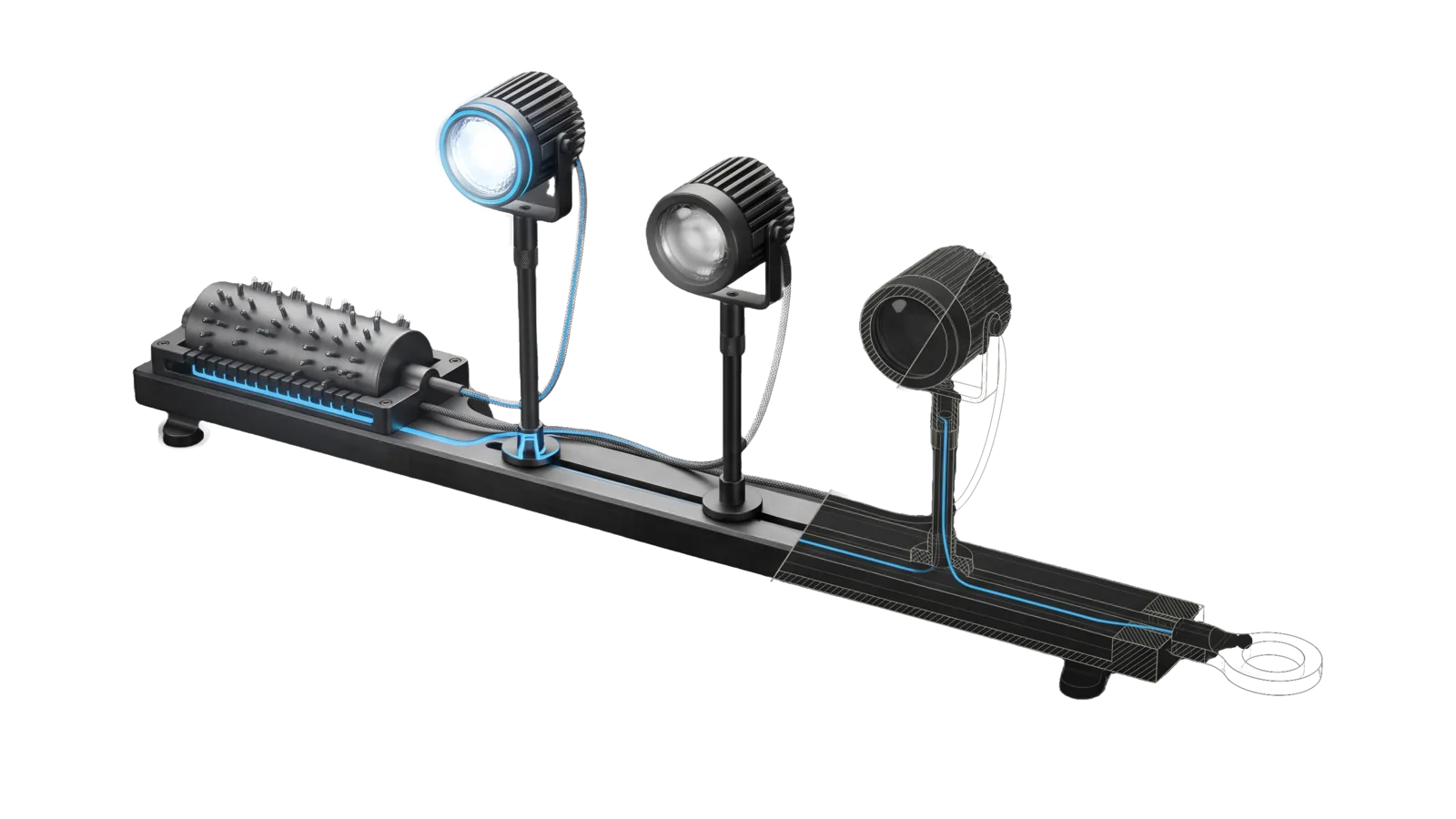
A low graphite rail carrying a pegged barrel drum at one end and three studio lamp heads of rising height, the tallest lit and the next dimmed, with thin cables from the drum to each lamp; a diagonal cut turns the last lamp and the end of the rail into bone-grey outline, and a sky-blue line runs from the drum through the cable to the lit lens and on to a ring terminal.
Other

StudioLights

Controls Aputure and amaran studio lights via the amaran Desktop WebSocket API: named scenes, per-light brightness and color temp, save the current state

01
Workflow
01
Tool
01
Reference
11
Triggers

Key Points

Not for house/Hue lights or thermostat (a home-control skill), studio audio, or video editing

Inside the Skill

The thinking, frameworks, and architecture that distinguish this skill from a generic version of the same task.

Ideal State

  • Every lighting change runs through Tools/Lights.ts against the rig the USER tree's devices.json and scenes.json define; no fixture, name or level is assumed from this skill.
  • Done is said only when the lights themselves read back the requested state.
  • A saved scene restores exactly the levels saved under its name, whether "recording", "normal" or any later caller asks for it.

Intent Routing

Intent Trigger File
Control "recording", "set the lights", "light scene", "dim X", "save this lighting" Intents/Control.md
File Read when
Setup.md first-time setup: amaran Desktop, finding node IDs, and writing devices.json and scenes.json

Data & Config

The rig lives in the USER tree, never in this skill: LIFEOS/USER/CUSTOMIZATIONS/SKILLS/StudioLights/devices.json holds each fixture's name, node ID, model and whether it has color temperature, and scenes.json holds the saved scenes. Free-form notes about the rig (where each light stands, what each scene is for, which Shortcut or macro calls a scene by name) go in Config.md in the same folder; the tool never reads it. First-time setup, including how to find node IDs and a worked example of a voice trigger, is in Setup.md.

Tools/Lights.ts exits with an error pointing at Setup.md when devices.json is missing; Lights.ts devices lists the node IDs to put in it and runs before the file exists. The tool finds that folder from its own skill folder's name, so the skill folder and its USER folder must share a name.

Gotchas

  • amaran Desktop must be running, because it is the bridge between the Mac and the lights' Bluetooth mesh. Lights.ts launches it and waits up to 30s. If it opens signed out, it reports no lights; sign in once in its window.
  • Daylight-only lights report cct: 0 and ignore color-temperature writes. Mark them "supportsCct": false in devices.json and the tool skips CCT for them; Lights.ts devices guesses this for you.
  • The API's intensity unit is 0–1000, ten per percent. The tool takes 0–100 and converts.
  • Each light accepts one command per 200ms. The tool spaces writes 220ms apart, so a scene takes about half a second per light. Do not run writes in parallel.
  • Each request carries a token in the same AES-GCM format the official Bitfocus Companion module sends; Lights.ts builds it for every request.
  • amaran Desktop is the only automation path; the phone apps for these lights offer none.
  • Anything that calls a scene by name (a Shortcut, a macro, another skill) breaks silently when the scene is renamed in scenes.json, so update the caller when you rename. A Shortcuts "Run Shell Script" action works on a Mac only.

Examples

Example 1: Recording

User: "recording" / "set lights for recording"
→ Control intent
→ bun Tools/Lights.ts scene recording
→ Lights move to the levels saved in the recording scene

Example 2: Back to normal

User: "lights back to normal"
→ Control intent
→ bun Tools/Lights.ts scene normal
→ Each light reports back at the normal scene's levels

Example 3: Tune and persist

User: "key light to 30%" ... "perfect, save this as recording"
→ Control intent
→ bun Tools/Lights.ts set key --intensity 30
→ bun Tools/Lights.ts scene save recording
→ The recording scene now holds the levels the user tuned

Workflows & Routing · 1

Each workflow is one job the skill runs. The trigger phrases route your request to the right one — this is the skill's routing table.

  1. 01
    Control Intents/Control.md

    recording, set the lights, light scene, dim X, save this lighting

Tools · 1

Deterministic executables the workflows call — the code that does the real work, not prompt scaffolding.

  • Lights.ts

How to Invoke

Say any of these to your DA and LifeOS activates the StudioLights skill automatically:

  • "lights recording"
  • "lights normal"
  • "recording lights"
  • "set lights for recording"
  • "studio lights"
  • "light scene"
  • "dim the key light"
  • "set the lights"
  • "lights too bright"
  • "save this lighting"
  • "green screen lights"

Or invoke explicitly:

Skill("StudioLights")

References · 1

Auxiliary files the skill loads at runtime — frameworks, guides, configs.

  • Setup

Want LifeOS to do this for you?

Install LifeOS on your machine — your DA gets the StudioLights skill plus 96 others, all hooked into one Life OS.