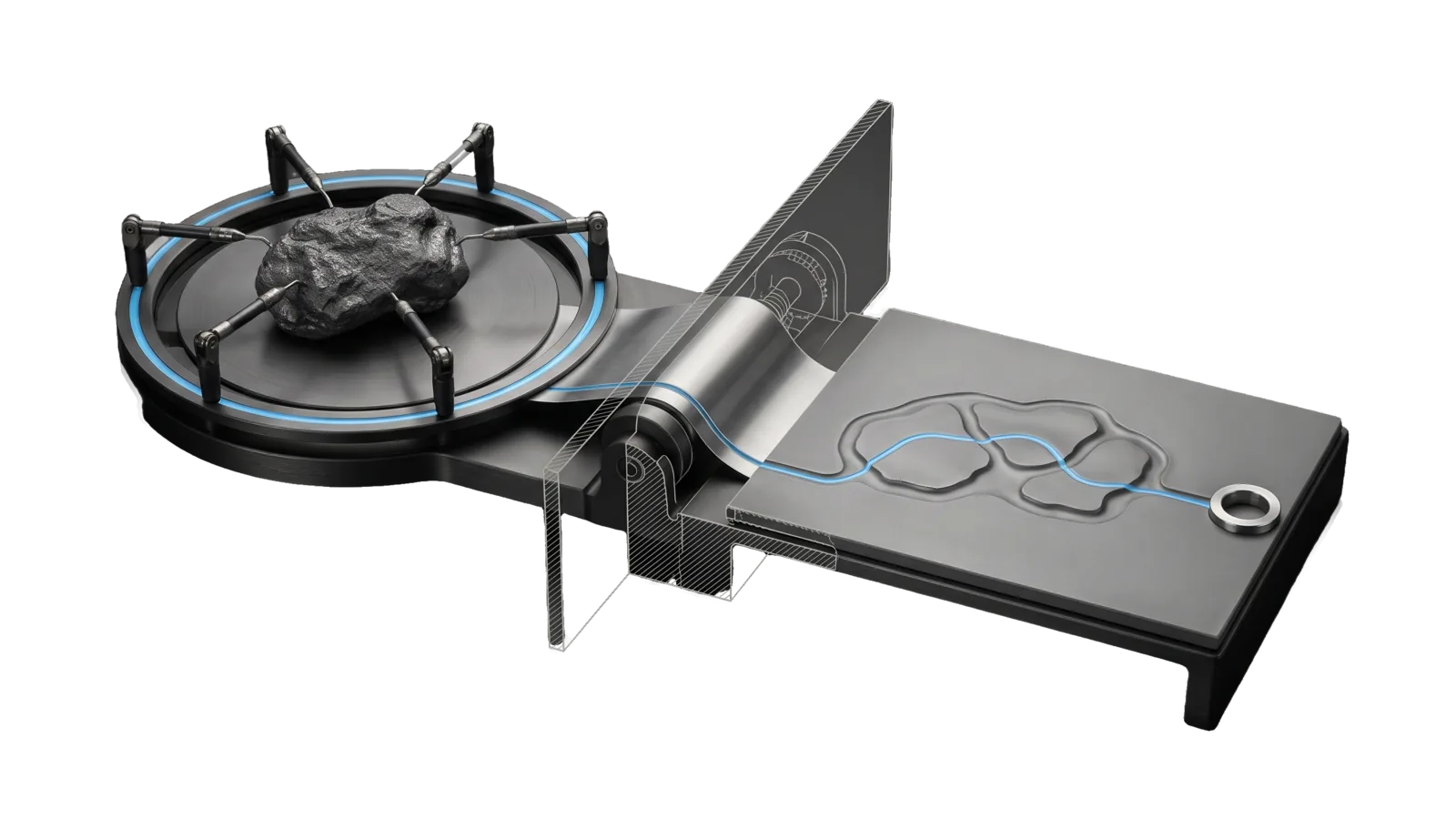
A rough lumpy specimen on a round turntable, ringed by six probe arms, with a ribbon unrolling over a roller into a flat bench where its outline is pressed in raised relief; a glass section pane cuts the roller, and a sky-blue line runs from the hoop across the ribbon to a ring at the sheet's edge.
Research

Visualize

Visualizes anything at all and never declines — a codebase, a physical setup, a timeline, a process, finances, a comparison, a concept, a URL, a dataset — as a short console summary plus a designed HTML page, every fact labelled with where it came from (a file quote, a URL, the principal's words, or general knowledge)

07
Workflows
03
Tools
01
Reference
18
Triggers

Key Points

Not for a standalone generated illustration or header image with no visualize ask (Art), rendering an ISA page (ISA), turning session output into an artifact (HTML), or hand-drawn sketches (Excalidraw)

Inside the Skill

The thinking, frameworks, and architecture that distinguish this skill from a generic version of the same task.

Ideal State

  • Whatever is named gets visualized through the route that fits it (system map, physical plan or concept page), never declined and never squeezed into the wrong route.
  • Every fact on a page says where it came from (a file or file:line, a verbatim plan quote, a URL, computed, the principal's words or general knowledge), and anything unconfirmed is labelled as such rather than stated.
  • The console summary alone tells the principal what the thing is and the one thing worth acting on, and the page holds the full picture, looked at in a real renderer before delivery.
  • The subject is only read: the page (and a plan's model under USER) are the only writes, and no secret value lands on any page.

Intent Routing

Intent Trigger File
Visualize "visualize" on code, "how does X work", "map this system", "explain this architecture" Intents/Visualize.md
Plan "visualize" on a physical thing: "visualize my drum/studio/desk plan", "lay out my setup", "draw my rig", "show me my order" Intents/Plan.md
Concept "visualize" on anything that is neither code nor a physical plan: an idea, a scientific question, a comparison, a dataset, a timeline, a process Intents/Concept.md
File Read when
Setup.md first-time setup: the optional PREFERENCES.md keys and where saved plans live

Data & Config

User customizations live at <configRoot>/LIFEOS/USER/CUSTOMIZATIONS/SKILLS/Visualize/ (configRoot is $CLAUDE_CONFIG_DIR when set, else ~/.claude). When it exists, its PREFERENCES.md, configurations and resources override the defaults here, and plan models live under its Plans/; when absent, the defaults stand. PREFERENCES.md keys: ## Concept pages → Ground: (the page ground Concept uses; default is whatever suits the subject). Setup: Setup.md.

Split of work

The model reads the target and writes one typed system-model JSON. Tools/Visualize.ts owns everything after that: it refuses models whose citations do not resolve, prints the ASCII, lays out the SVG, and writes the page. The model never hand-writes ASCII art or HTML, which keeps every map consistent and the grounding check in code.

  • bun ~/.claude/skills/Visualize/Tools/Visualize.ts --schema prints the model shape with an example.
  • Physical plans use Tools/VisualizePlan.ts with the same flags and the same split: the model writes a plan-model JSON (--schema shows it), and the tool checks every { file, quote } against the plan document before drawing the page.
  • Concept pages are the exception: the model hand-builds the page, because a fresh composition per subject is what makes them good. Tools/Bake.ts owns the mechanical parts: --check parses every inline script before any screenshot, and a bake writes a script-free copy for hosts that block scripts.
  • Every browser check serves the page over a local HTTP server, because the Interceptor test profile cannot read file://.

Flags shared by both renderers (--check validates without writing):

User says Flag Effect
(default) — Console output + page in the --root directory
"just show me", "console only", "no HTML" --no-html Console output only
"put it in Downloads", "save it to X" --out-dir <dir> Page lands in that directory instead
"wider", "narrow terminal" --width <n> Console width (default 100)

Gotchas

  • "Visualize" on a physical plan is still this skill. A request to visualize a drum-kit order was once built as a hand-written one-off page because the description only named code. The Plan route and renderer exist so that doesn't happen again. (2026-09-24)
  • Share hosts serve HTML under Content-Security-Policy: sandbox, which blocks every script, and their preview page shows HTML as source. A scripted page uploaded raw renders blank; upload the baked copy and give the raw link. (2026-10-06) The same sandbox blocks new tabs, so a target="_blank" link does nothing on a plain click; Bake.ts strips those targets, so link rows only work in the baked copy. (2026-10-12)

Examples

Example 1: A half-forgotten service

User: "visualize the monitoring layer"
→ Visualize intent
→ A console map naming its parts, main flow and top risk, and <dir>/Visualize-<slug>-<timestamp>.html where every part, link and risk cites its file

Example 2: From an ISA

User: "/visualize path/to/project/ISA.md"
→ Visualize intent
→ The ISA supplies intent and names, every component is grounded in the code the ISA points at, and the page lands next to the ISA

Example 3: A gear plan

User: "visualize my drum kit plan"
→ Plan intent
→ A to-scale top-down drawing with the cost split, the full order and the open decisions, every fact quoted from the order sheet; a cost that misses the stated total is flagged first

Example 4: A comparison from the conversation

User: "visualize the three options we just compared"
→ Concept intent
→ One designed page whose main figure draws the comparison, every fact source-tagged, and a console line naming the one non-obvious difference

Workflows & Routing · 7

Each workflow is one job the skill runs. The trigger phrases route your request to the right one — this is the skill's routing table.

  1. 01
    Visualize Intents/Visualize.md

    visualize on code, how does X work, map this system, explain this architecture

  2. 02
    Plan Intents/Plan.md

    visualize on a physical thing: visualize my drum/studio/desk plan, lay out my setup, draw my rig, show me my order

  3. 03
    Concept Intents/Concept.md

    visualize on anything that is neither code nor a physical plan: an idea, a scientific question, a comparison, a dataset, a timeline, a process

  4. 04
    (default) Workflows/(default).md

    (default)

  5. 05
    "just show me", "console only", "no HTML" Workflows/"just show me", "console only", "no HTML".md

    just show me, console only, no HTML

  6. 06
    "put it in Downloads", "save it to X" Workflows/"put it in Downloads", "save it to X".md

    put it in Downloads, save it to X

  7. 07
    "wider", "narrow terminal" Workflows/"wider", "narrow terminal".md

    wider, narrow terminal

Tools · 3

Deterministic executables the workflows call — the code that does the real work, not prompt scaffolding.

  • Bake.ts
  • Visualize.ts
  • VisualizePlan.ts

How to Invoke

Say any of these to your DA and LifeOS activates the Visualize skill automatically:

  • "visualize"
  • "visualize this"
  • "visualize my <anything>"
  • "visualize <project>"
  • "show me this visually"
  • "draw it"
  • "map it"
  • "lay it out"
  • "how does X work"
  • "explain this architecture"
  • "map this system"
  • "system map"
  • "architecture map"
  • "what are the moving parts"

Or invoke explicitly:

Skill("Visualize")

References · 1

Auxiliary files the skill loads at runtime — frameworks, guides, configs.

  • Setup

Want LifeOS to do this for you?

Install LifeOS on your machine — your DA gets the Visualize skill plus 96 others, all hooked into one Life OS.